Wednesday, 28 September 2011

Enterprise Application Development in a Mobile World


The indicators and the research are everywhere: mobile apps are becoming the dominant force in software development. A recent Forrester Research report titled Mobile App Internet Recasts The Software And Services Landscape predicted the mobile apps market could balloon to $38 billion by 2015 from its current value of $1.7 billion. The challenge for developers and IT departments is tackling their mobile development needs while integrating mobile apps with multichannel and enterprise apps.

The solution to that challenge (according to Forrester) might be to design for mobile first. That's the principal conclusion of the newForrester Wave: Mobile Collaboration, Q3 2011 report written by Ted Schadler. Mobile collaboration now requires a new app approach, asserts Schadler.

Mobile User Expectations and Demands

Schadler's report states, "We now live and always will live in a multi-device world, where companies and consumers choose different smartphone and tablet platforms and expect to get apps on all of them."

Increasingly, work has become something that people do anywhere. Two-thirds of the information workforce already works remotely, according to Demystifying The Mobile Workforce, a Forrester report issued this June. That figure is only likely to grow, given the adoption of tablets and the growing use of smartphones.

In a related report, Gartner said worldwide sales of smartphones will reach a staggering 1.1 billion in 2015. As early as the end of 2011, Gartner expects that smartphone sales will be 468 million units, a 57.7 percent increase over last year.

Schadler notes that the most productive employees now use four devices to get work done. This means that "client/server solutions with on-premises servers are inadequate, simply not responsive or agile enough for escalating user requirements and expectations."

Because of the proliferation of devices, Schadler also believes mobile apps need to be designed to run well on any mobile device. With so many different mobile platforms and form factors to target, app developers will have to organize differently, code differently, and execute differently. In this new environment, design skills will grow ever-more important and scarce.

As a result, there will be new abstraction layers that separate presentation from interaction and interaction from back-end services.

Mobile Applications on Multiple Platforms

The growth of mobile devices and the plethora of apps that run on them leaves developers with one huge challenge: how to create and deploy cross-platform applications quickly and within budget.

Many vendors offer mobile application development solutions, which Gartner calls Mobile Enterprise Application Platforms (MEAPs). A MEAP provides tools and client/server middleware for mobile (targeting any sort of mobile application), multichannel (highly device/OS- and network-adaptive), and thick (offline) enterprise application development. In so doing, MEAPs enable companies to deploy multiple mobile applications across several devices, helping them to achieve enterprise app creation far beyond their bandwidth.

Gartner predicts that more than 95 percent of organizations will choose MEAPs or packaged mobile application vendors as their primary mobile development platforms through 2012. Leading vendors in the MEAP space include Sybase, Spring Wireless and Antenna. Appcelerator, Pyxis Mobile, Rhomobile and WorkLight are among the up-and-comers.

Recently, WorkLight unveiled WorkLight Mobile Platform Version 4.0, which includes what the vendor calls "the first multi-platform hybrid coding IDE." This IDE enables developers to create smartphone and tablet applications via a centralized, enterprise-ready custom development process using a variety of native and Web technologies.

Other all-in-one platforms include the open source Titanium (from Appcelerator), the open source Rhodes (from Rhomobile) and Pyxis Mobile (from Pyxis Mobile).


Extracted From -

http://www.devx.com/wireless/Article/47324?trk=DXRSS_LATEST


Extracted from

Sunday, 25 September 2011

Rackspace and Managed Cloud Services: "Magic" or Marketing?


"The Cloud" may be an industry buzzword, but many companies are starting to realize that it takes work to move to the cloud. There is no magic button that you press and instantly have your company utilizing the cloud. No matter how you slice it, IT is just complex, slow and expensive. With its new managed cloud service, Rackspace is trying to prove that even within the challenging IT realm the cloud is better, faster and cheaper than data centers. The hosting provider wants to make moving to the cloud easy so you can concentrate on what matters most: your applications.

In order to make your cloud experience magical, Rackspace has introduced a managed service level for its Cloud Servers product that will provide your cloud servers with monitoring, troubleshooting and administrator assistance 24/7/365 on both Windows and Linux. This managed service will provide the following features:

  • 24/365 chat, phone and ticket support
  • Provisioning on demand
  • 100 percent uptime guarantee
  • 100 percent HVAC/power uptime guarantee
  • Migrations
  • Image backups
  • Expanded backups
  • Server OS and application support
  • 24x7x365 monitoring, response and resolution support
  • Technical guidance
  • Account team

With the above features, Rackspace aims to do all the work and allow you to just deploy the applications and concentrate on making money -- not managing servers and a data center.

How Much Does the Rackspace Managed Service Cost?

If you have a 2GB Rackspace Cloud Server running for 730 hours or 30 days, you will pay the following:

  • An account management fee of $100.00 per month (Flat fee)
  • A utility fee of 12 cents per hour (Pay-as-you-go metered pricing)
  • A service fee of 12 cents per hour (Pay-as-you-go metered pricing)

The total would be $275.20.

Managed Cloud Services: Leveraging Laziness?

So, is this really a magical solution or just a way for a company in a questionable economy to earn a buck? As I stated previously, IT is just hard no matter how you spin it. You can sing a song all day long about support and uptime, but when you do your due diligence and you'll find Rackspace managed services complaints dating back more than two years:

  • Forced migration of servers
  • Inability to get new IP addresses
  • Rackspace IT support turnover
  • Clients that report servers down for days
  • Rude support staff

Managed cloud services seems like just another buzzword for repackaging services that Rackspace already had and adding "The Cloud" onto it. Why do you have to pay for tools to manage your cloud servers? They should be available out of the box. I would not sell you a brand new car without a spare tire or a jack. Now if you are the type of car owner who will pay for additional perks like vacuuming, oil changes, and tune-ups -- while you do nothing -- managed services such as Rackspace's may be for you. At least you are in control of how many services you need. With Rackspace managed cloud services, you pay only for the time you need the service.

Honestly, this trend is not going away anytime soon. Even if I do not completely agree with the concept, the rise of managed cloud services will continue. The industry is moving in this direction and there seems to be a demand created by laziness as we migrate from traditional hosting to cloud computing. The "magic button" concept is here to stay.


Extracted from - http://www.devx.com/enterprise/Article/47320?trk=DXRSS_LATEST


Tuesday, 20 September 2011

Microsoft Touch Mouse Brings Multi-Touch to Windows

After decades of dependable point-and-click service, the humble mouse is getting a makeover. The result is introducing Windows 7 users to a new way of interacting with their PC.

The Microsoft Touch Mouse combines multi-touch gestures with the pinpoint control of the humble mouse.
Click for larger image.

The new Microsoft Touch Mouse combines the virtues of the old familiar mouse – which has been continually optimized since the 1960s – with multi-touch gestures. Now available online and in retail stores in late September, the new mouse offers the millions of people who use Windows 7 a natural way to navigate the operating system, said Scott Rockfeld, director of product management for Microsoft Hardware.

“This is the first time we’ve married the control and precision of a mouse with the interactivity that touch delivers on your PC,” he said. “We give you control of your PC that you can feel in your fingertips.”

The Touch Mouse lets users do everything they’re used to doing with a mouse, such as point and click, but adds multi-touch functionality that helps them navigate Windows 7 easier and faster with a flick of their fingers, said Hrvoje Benko, a researcher with Microsoft Research (MSR) Redmond who helped develop the Touch Mouse.

Get Microsoft Silverlight
Meet the team from Microsoft Research and Microsoft’s Applied Sciences Group that worked together to create the Touch Mouse.

“This mouse is designed to optimize your experience with Windows 7,” he said. “The tasks you do every day – minimizing and maximizing windows, scrolling through Web pages – all that functionality is available right at the top of the mouse with a touch of a finger.”

Or two or three fingers. As shown in this video, users can navigate with Touch Mouse in a variety of ways:

One finger allows users to scroll 360 degrees through the document they’re in.

Two fingers allow them to manage the active window they’re using and perform tasks such as maximizing and minimizing windows or snapping them left or right.

Three fingers allow users to manage their whole desktop by switching between different tasks or clearing all open windows.

A flick of the thumb allows users to move forward and back in programs such as Internet Explorer, PowerPoint, and Windows Photo Viewer.

Building Mouse 2.0

The newly announced Touch Mouse Artist Edition features a design created by New York-based artist Deanne Cheuk.
Click for larger image.

Hidden inside the Touch Mouse’s deceptively simple design is more than two years of cross-company research. The product evolved from the Mouse 2.0 project, a joint effort started in 2008 by Microsoft Research teams in Redmond and Cambridge and the Applied Sciences Group from Microsoft Hardware. Their goal was to combine the standard capabilities of a mouse with multi-touch sensing.

“We were looking at how to merge the excitement of the multi-touch gestures that were just starting to infiltrate computing devices with the flexibility and control of the mouse, which essentially has been optimized for two-plus decades,” Benko said. “We wanted to bring these rich new interactions to the desktop without losing the tried and true mouse.”

The team initially explored a wide range of technologies and interaction models, relying heavily on user feedback. They ended up with five different research prototypes representing different types of multi-touch sensors: camera-based; articulated, meaning they stitched together three mouse sensors; and capacitive, which have functionality similar to a laptop’s track pad.

Microsoft Hardware’s portfolio of touch products, including the Arc Touch Mouse that flattens for portability, aim to bring multi-touch computing to millions of Windows 7 users.
Click for high-res version.

After careful consideration of the technological tradeoffs, the team decided on the capacitive-sensing model because it allowed for multi-touch gestures without abandoning the familiar mouse shape. They wrestled long and hard with the shape – it had to be comfortable in the hand and yet provide the right surface for natural gestures with all five fingers. The team conducted extensive user research and tested hundreds of forms and models before settling on a mouse with a 23 degree slope, a “sweet spot that gives you the comfortable shape and enough flatness to perform gestures,” Benko said.

Over several months, they continued to refine the sensor design and tweak functionality. The result became the Touch Mouse, which lets PC owners use natural gestures to access the features in Windows 7 they want to use most.

Benko said he was excited to bring touch to a much broader range of devices. Touch is an increasingly popular way of interacting with technology, but it’s primarily taken hold in small handheld devices. “For desktop scenarios with large, vertical screens, you’d need gorilla arms to go longer than 10 minutes through touch alone,” he said. “In terms of optimizing the effort of controlling the real estate you have on large screens, it’s really hard to beat the mouse.”

The Touch Mouse emerged out of a Microsoft Research effort to reimagine the mouse. The Mouse 2.0 project initially produced the five prototypes of multi-touch mice above.
Click for larger image.

That’s why the Touch Mouse is a happy marriage, Rockfeld said. Direct touch technology is good for some things but not for others, he points out. It makes scrolling and flicking through digital pictures a breeze, but clicking in a small cell in Excel – not so much. “Desktop users need the precision and control of a mouse, but they also want that feeling of power that touch gives them,” he said. “With the Touch Mouse, without taking your hand off the mouse, we can deliver both to the millions of Windows 7 users.”

Only a fraction of Windows 7 users have touch enabled natively in the hardware. Touch Mouse is part of Microsoft Hardware’s effort to bring touch to millions of Windows 7 users. Other examples are the Explorer Touch Mouse, the Arc Touch Mouse, and the soon-to-be-released Touch Mouse Artist Edition.

“The Touch Mouse is our stake in the ground with multi-touch PC input devices, and it’s really just the beginning of things to come,” Benko said.

The product highlights the value Microsoft Research can deliver, Benko added. “This is a good example of how the algorithms and ideas and prototypes developed in research directly translate and make certain things possible for product teams that wouldn’t have been possible,” he said. “You could not make this mouse without the software.”


Shall we buy this from amazon


Extracted from -


http://www.microsoft.com/presspass/Features/2011/sep11/09-01TouchMouse.mspx?rss_fdn=Custom


Windows 8

you can buy Windows 8 from ebay Now
Microsoft Windows 8 Build Samsung Tablet

Windows 8 Build Developer Tablet by Samsung with Accessories and AT&T Broadband


http://www.ebay.com/itm/Microsoft-Windows-8-Build-Samsung-Tablet-/250895305136?pt=US_Tablets&hash=item3a6a8689b0

Video

http://www.youtube.com/watch?v=59mP3R4I8wU

Monday, 19 September 2011

ROI

If you want to invest to become CEO join with us


https://picasaweb.google.com/lh/photo/GmqEzDmvdpTgQ_Vx0AFdPdBJIPh74d-HQlu8FMemC5U?feat=directlink

Thursday, 15 September 2011

Windows 8 Replaces the Win32 API


Windows 8 introduces a new core API called WinRT. This is used to develop Metro style applications using C/C++, .NET, or JavaScript. These applications automatically gain features such as hardware acceleration and advanced power management out of the box. Existing Silverlight and WPF applications can be ported to the new “Native XAML” libraries with minimal effort.

What follows is a summary of the keynote presentation. More details will be provided as they become available.

General Notes

Windows 8: Base line memory usage dropped from 540 MB to 281 MB.

The lock-screen can now display user content.

Touch-based passwords, essentially you tap on three points of an image to unlock the machine.

Like Windows Phone, the start page uses the metro style with live tiles.

There is a heavy emphasis on full screen applications.

Application specific and system settings share the same space on the user interface. It appears that applications will need to indicate which systems settings are relevant.

New version of Internet Explorer will be completely free of chrome. All of that functionality is hidden in application bars that slide into view.

Spell check is included system wide.

Developer preview includes Visual Studio 11 Express, Expression Blend 5. There is no timeline for the next milestone, which is the public Beta. Intern updates will be pushed to the preview machines on an as needed basis. The preview will be available starting tonight as http://dev.windows.com at for x86/x64.

Application Integration

Windows 8 will have extension points known as “charms”. An example of a charm is the “share charm” which shows all the ways text can be shared such as email, Facebook, Twitter, etc. Applications can register themselves inside a charm by implementing the correct interfaces. Meanwhile other applications can indicate they are capable of sending information to the charm. The concept is very much like JavaScript mashups or classic OLE, but with a lot more thought about what those interactions should be.

System wide search is now supported. Again, applications can register themselves as a search provider.

Applications can expose files directly from the cloud for use by other applications. One does not need to copy files such as images to the local hard drive before other applications can access them.

Developing for Windows 7: Classic platforms:

· HTML/JavaScript on Internet Explorer

· C/C++ on Win32

· C#/VB on .NET and Silverlight

Developing for Windows 8: Metro Style

Windows Kernel is still at the bottom of the stack

WinRT is the new OS-level API layer. This is the new native API for Windows, it isn’t a new layer on top of Win32.

You can access WInRT from C/C++, C#/VB, or JavaScript. XAML is the UI layer for C, C++, C#, and Visual Basic. HTML/CSS will continue to be used as the UI layer for JavaScript.

Visual Studio will have project templates for the various styles of Windows 8 applications. The first demonstration is a JavaScript-based application. The application isn’t compiled but it is packaged into a bundle that includes all the html and JavaScript files needed by it. Windows 8 runs it directly, there is no need to launch the web browser.

As alluded to above, JavaScript can access the native functionality from the WinRT API. In the keynote demo it only took a couple lines of code to expose the new Windows open file dialog. Since Facebook was already installed on the machine the open file dialog showed images from the presenter’s Facebook page. The JavaScript application had no networking code at all, this link between it and Facebook was handled entirely by the platform.

Expression Blend now supports HTML and CSS with much

The HTML 5 grid proposal is essential to building Windows 8 applications. Without it supporting the wide variety of screen resolutions that Windows 8 runs on would be very difficult.

Metro style applications are automatically suspended when not visible. This was done to prolong battery life.

App Stores

As expected there is now going to be a Windows store for distributing applications. The technological aspects of application licensing is handled by the by store itself, one merely has to indicate basic information such as price and whether or not there is a demo period.

A certification process is required for offering applications in the Windows store. The tools used to certify applications will be given to developers so they can see and correct violations before they formally submit the application.

The application for accessing the Windows 8 store is actually written using JavaScript over the WinRT API.

The app store is not limited to Metro style applications, traditional Win32 applications can also be offered via the store.

Upgrading from Silverlight to Windows 8

In the demo all the of the existing XAML worked as-is. The presenter just needed to change the namespaces (e.g. System.Windows becomes Windows.UI) and tweak the networking code. With only a couple more lines of code he was able to register the application as a search provider.

Moving from Windows 8 to Windows phone just required an extra line or two.

Hardware Support

A new mode called “Connected Standby” is inspired by mobile devices. The power consumption is very low with occasional spikes as the Windows temporarily turns on the network connection to allow applications to receive updates. Since the system is never actually turned off it comes alive instantly.

Max hard drive size is 256 terabytes. Windows 7 was limited to a 2 terabyte boot drive.

The entire platform is built to use hardware accelerated graphics. Metro style applications will use them by default, no additional coding is needed to enable it.

The Sensor Fusion API will combine the information from the gyro, accelerometer, and magnetometer. Getting basic information such as the physical orientation of the device takes three lines of code.

The networking stack now supports concepts such as the side-channels in 3G.

For the give-away they are offering a Tablet running Windows 8 and Visual Studio.

Refresh and Reset

Using the Refresh command will remove everything except personal information/settings. Metro-style applications will be retained, any Win32 style application will be removed. This is one from a baseline image and should be run in response to system problems such as viruses.

The Reset command will completely wipe the PC. All personal information is removed and it is returned to the factory settings as if it were just purchased new.

There is a command line tool to update the baseline image. This would be used to add applications such as Visual Studio or Office to the standard image. Enterprise users would most likely want their companies custom software also included in this baseline image.

Cloud Services

Application settings, themes, passwords, etc. can by synchronized across machines using a Windows Live account.

The Windows address book pulls in contacts from all sources including social networking sites and exposes them via your Windows Live account. Likewise shared calendars are aggregated.

Windows SkyDrive is available to all users with a Windows Live account. Developers can access it as if it were a normal disk drive.

Windows Live allows one machine to access another even if it is behind a firewall. Companies that are concerned about information security should take care, as this allows common users with no technical skills easily move otherwise restricted files from their workstation to home machine without even being in the building.

Microsoft is expecting developers to use Windows Live to connect their applications together.

Who built the Apps?

17 teams of 2 to 3 developers each worked for ten weeks on the demo applications. They were all summer interns working on an evolving platform


Extracted From : http://www.infoq.com/news/2011/09/WinRT


Windows 8: Microsoft Joins Apple In no Adobe Flash Plugin


According to Microsoft’s Internet Explorer team leader Dean Hachamovitch, Microsoft’s brand new Windows 8 Metro user interface will not support Adobe Flash or other plug-ins, instead embracing the HTML5 set of web standards.

In a blog post, the company said the Metro style Internet Explorer 10 is HTML 10 only and plug-in free. Consumers can still view Flash-enabled websites in the standard desktop interface of Windows 8.

“Providing compatibility with legacy plug-in technologies would detract from, rather than improve, the consumer experience of browsing in the Metro style UI,” Hachamovitch wrote in a blog post on Thursday, causing quite a stir in the blogosphere.


According to Microsoft’s Internet Explorer team leader Dean Hachamovitch, Microsoft’s brand new Windows 8 Metro user interface will not support Adobe Flash or other plug-ins, instead embracing the HTML5 set of web standards.

In a blog post, the company said the Metro style Internet Explorer 10 is HTML 10 only and plug-in free. Consumers can still view Flash-enabled websites in the standard desktop interface of Windows 8.

“Providing compatibility with legacy plug-in technologies would detract from, rather than improve, the consumer experience of browsing in the Metro style UI,” Hachamovitch wrote in a blog post on Thursday, causing quite a stir in the blogosphere.


Extracted From - http://www.munciefreepress.com/node/24463


Wednesday, 14 September 2011

Top 10 App Store Rejections Reasons

Bugs – Bugs are one of the main reasons for apps to be rejected from the app store, right off the bat. If the app crashes or doesn’t respond during review testing, a rejection email from the app review team is almost inevitable.

Human Interface Guidelines (HIG) – iPhone developers need to follow each and every point of Apple’s Human Interface Guidelines precisely. If you’re taking your first steps as a developer, make sure to read their HIG guidelines first. It will save you a lot of headaches down the road.

Identical Icons - Two sets of icon sizes need to be supplied to Apple 512×512 and 57×57. These icon need to be identical. Not following the exact measurements leads to violation of HIG which may be grounds for an iPhone app rejection.

Internet Connectivity - If your app needs internet connectivity to work and it’s not available, then a message should be displayed to the user. Simply displaying a loading icon and keeping them waiting when no connectivity is available will lead to a rejection. Apple always tests apps under no connectivity conditions so iPhone developers must avoid taking a chance on the App Store.

Device Capabilities - Testing is essential, especially across various iOS devices. There are slight differences on the iPod, iPhone and iPad so make sure you’re not missing any specific compatibility issues with one of the devices.

Excessive Bandwidth Usage - If the app downloads data from the cellular network; iPhone developers should make sure that the app is not downloading too much data. Apple doesn’t mention the exact count but downloading rate should be low, may be around 4.5 meg of data per 5 minutes of activity.

Button Image Consistency – Creating your own set of custom buttons is always a good idea, however if you want to use Apple’s existing images as your app’s buttons then make sure they’re used in the standard way they were intended for. Misuse of images and button consistency will lead to a rejection.

Lite Versions – When it comes to Lite versions of apps, the rules are very vague. One thing’s for sure, apps may be rejected if the app contains buttons that are disabled or don’t function due to the app being a Lite version. The best course of action create an app with In-App purchase functions and highlight the fact that your app offers IAP upgrades.

OS Compatibility - As an iPhone developer you should be very particular about your claims on OS compatibility. If you claim that the app is suitable for a particular version of OS and higher versions then app should work perfectly on all versions, or else your app will get rejected.

False Claim of missing network - iPhone developers should make sure that they don’t give any false positive feedback in network detection. Again, this goes with any previous false or misleading claims mentioned above.

In Conclusion: Way before marketing and user engagement, the major hurdle to an app’s success may come very early on in the form for an app rejection. If it does, refer to this post as your guide and try to rectify the issue.


Extracted From - http://blog.w3i.com/2011/08/10/top-10-app-store-rejections-reasons-and-how-to-deal-with-them/

Sunday, 4 September 2011

ASP .NET Web Site VS Web Applicaiton


Part 1

Web Site vs. Web Application Project

In Visual Studio 2005 and later, there are some significant differences between a "web site" and a "web application project" (WAP).

Project structure
A web site has no project file. The "site" is simply the collection of files in the site's directory. Project/binary references and other configuration settings are stored in the web.config file (poor form in my opinion).

A web application project does have a project file, it's treated as a class library project. However, the visual studio template for a WAP provides some additional things such as what types of items are visible in the "Add new item" dialog (i.e. web form, master page, user control, web.config, etc) and configuration of debugging such as the settings for the development web server or IIS.

Codebehind/Codefile attribute
In a WAP, the markup directive (@Page, @Control, etc.) contains the "Codebehind" attribute. This is actually meaningless to the ASP.NET runtime, it's a linking attribute used by visual studio to indicate what the code-behind file is for the markup file.
In a site, the "Codefile" attribute is used. This is similar to the "Src" attribute. (I've experimented with the two and can't find a significant difference between them.) It tells the ASP.NET runtime what source code file should be compiled together with the markup. This is what links a markup file to a code behind file in the dynamic architecture of web sites.

Compilation
In both a site and WAP, the markup (AS?X files) are dynamically compiled. There is an exception but it's an advanced topic. All code files (including page code-behind) for a WAP are always pre-compiled. In a site, nothing is pre compiled. The ASP.NET runtime will compile everything in the App_Code directory into one DLL and each page will get compiled into its own DLL. This affects the class scope.

Class scope
Only code in App_Code is available to all classes in a site (that's where you HAVE to put shared code). In the WAP - because it's pre-compiled - all page classes live together in the same assembly and can thus see each other.

Namespaces
Perhaps the largest difference between the two is with the namespaces are constructed.
In a WAP all classes are created by default as members of the root namespace defined in the project (typically the project name). For example, in a project named "MyProject" the new page "MyPage" will have a fully qualified class name of "MyProject.MyPage". When you create sub directories in the project, visual studio creates another namespace level for pages created in those directories by default. So if I create a folder "Admin" and another page "MyPage" I will get a class name of "MyProject.Admin.MyPage".

In a site, all pages are part of the default root namespace for dynamically compiled pages: "ASP". Class names are created with underscore separation of their location when they live in sub directories. In a web site, instead of "MyProject.Admin.MyPage" the page class would actually be "Admin_MyPage". When it's dynamically compiled it will become "ASP.Admin_MyPage".

Which to chose
It is important to chose the right project type. With the changes introduced in Visual Studio 2005, it is now much easier to work with either type of project (no more IIS integration, woohoo!). Being able to open a web site via FTP is very helpful for certain needs. For some, the web site model will be ample. It's great for tests or simple sites that aren't code intensive.

However, I have found that in professional development the WAP is the better choice. Because there is a project file "controlling" the project it's easier to manage it with regards to what is actually included in the project which helps to control things such as the source control repository items for the project. In my case, having the project file is also necessary for the build system as the project file provides the parameters for what to build for a given project.

Yes, using a WAP forces us to always precompile the application. On the down side, this makes updates more difficult because any other changes are rolled in with it, we can't just update one single page. However, this is good in several ways.

Simply put, production code should not be updated willy-nilly. We need to exercise a fair amount of control over what gets pushed to production. The app should be regression tested by QA. Also, with a good build system and source control practices, you can do updates as necessary to deploy patches without including changes being made in a given applications main trunk. If you do need to make a change, there are ways to "patch" a single page by reverting it to the web site code file model.

Another benefit of using the WAP is that the project configuration is kept in the project file instead of in the web.config, where it really doesn't belong. This keeps the concerns (configuration of the actual app versus configuration of the project within Visual Studio) well separated.

Yet another good aspect to the WAP is that you can "see" all the classes in the project - they are all within the scope of the entire assembly. In some large projects with many developers and many pages that require query string arguments to function I've used a technique for doing "strongly typed page urls". Follow the link for more details, but in short: I create static page methods that return a properly formed URL. Using a managed method provides the opportunity to force required page parameters by using regular method arguments.

This is all obviously very biased towards using the WAP. This is partially due to where ASP.NET development started, in 1.1, with the web project. In the interest of full disclosure, I haven't worked with the web site model enough to really speak fairly for it. However, between the little I've worked with it and from what I've heard from speaking with other developers, for anything that isn't a trivial web site, the WAP is the way to go. The web site type is good in some cases, but as with any tool, it should be used where appropriate. Fortunately, Visual Studio has pretty good support for converting a web site to a web application project, so starting upgrading from a site is not terribly difficult.


Extracted From http://www.compiledthoughts.com/2008/05/web-site-vs-web-application-project.html


Part 2


Introduction

This post explains about two project types in Visual studio ie Website and Web Application that we use to build the ASP.NET Applications and the fundamental differences between the two project types..

Background

Website project type was introduced in the VS 2005 and Web Application model introduced in VS 2003. Website project type is based on folder structure and does not require a project file. Later in VS 2005 sp1 project file was introduced for the VS 2005 website project type. Now in VS 2008 we can create both project types.

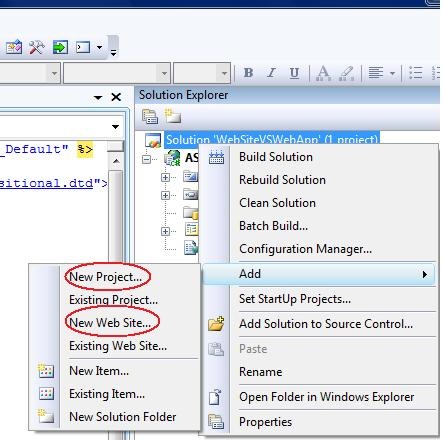
1. You can add Website or Webapplication project to your VS solution in VS 2008 as follows

VS2008sln

2. I have added two project types to the solution and it looks like the following

solution

  • Fundamentally the behavior of the application types is same but website project type is folder based and WebApp is project type like normal project types in VS studio. In WebApplication project type project file defines the structure of the project.
  • WebSite project type contains the folders and anything that you put in the folder are dynamically compiled and be part in the website. More about ASP.NET Website Dynamic compilation here.
  • WebApplication project type contains the designer for the ASPX page and you can find the bin folder which contains the compiled assembly.

So First difference can be summarized like ASP.NET website project type is dynamic and WebApp is more like structured.

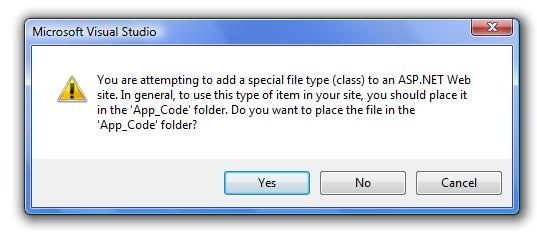
3. When you add a class file to the website project it will prompt you that it will place the file in App_code folder under root.

AppCode

Notice In website project type namespace won’t add to the class by default however you can define the namespaces explicitly where as in WebApp it creates the namespace for the class file when you added it to the project.

4. WebApp project type is restricted to one language where as Website you can add different language files to the App_Code folder which compiles the files dynamically.

5. Referring a user control in WebApp is straight forward.You can define the properties and can be accessed in class files like any other objects where as in website it is not.

6.We can put multiple language files in the Website but those files needs to be in same folder. If you change the location of the file then you need to mention in the Web.Config file as follows..


In compilation process you will have the finer degree of control in WebApp and it is not in Website because everything is dynamically compiled.

7.When you deploy the WebApps you can just copy the Compiled Assembly and Visual elements to the IIS folder where as in Website you need to copy everything to the IIS to work.

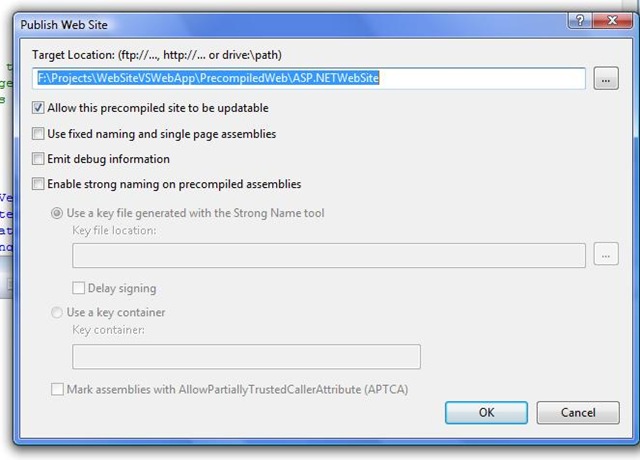
8.You can see the following dialogue box when you publish the files in Website

publish

If you select the precompiled option then you will find the precompiled folder in the published location there you find the multiple assemblies for each folder in the website.

9. If you use WebApplication project you can not access Profie at design time a workaround solution can be found here.

10. The following link helps you to choose which project type you have to user for the developing web applications.


Extracted From -

http://www.techbubbles.com/aspnet/aspnet-website-vs-web-application-project/